How to Edit Milky Way Photos in Lightroom and Photoshop
A step by step Lightroom and Photoshop workflow for Milky Way photos: night white balance, AI versus manual noise reduction, stacking for noise, blending sky and foreground, and how to avoid an over-processed core.
How to Edit Milky Way Photos in Lightroom and Photoshop
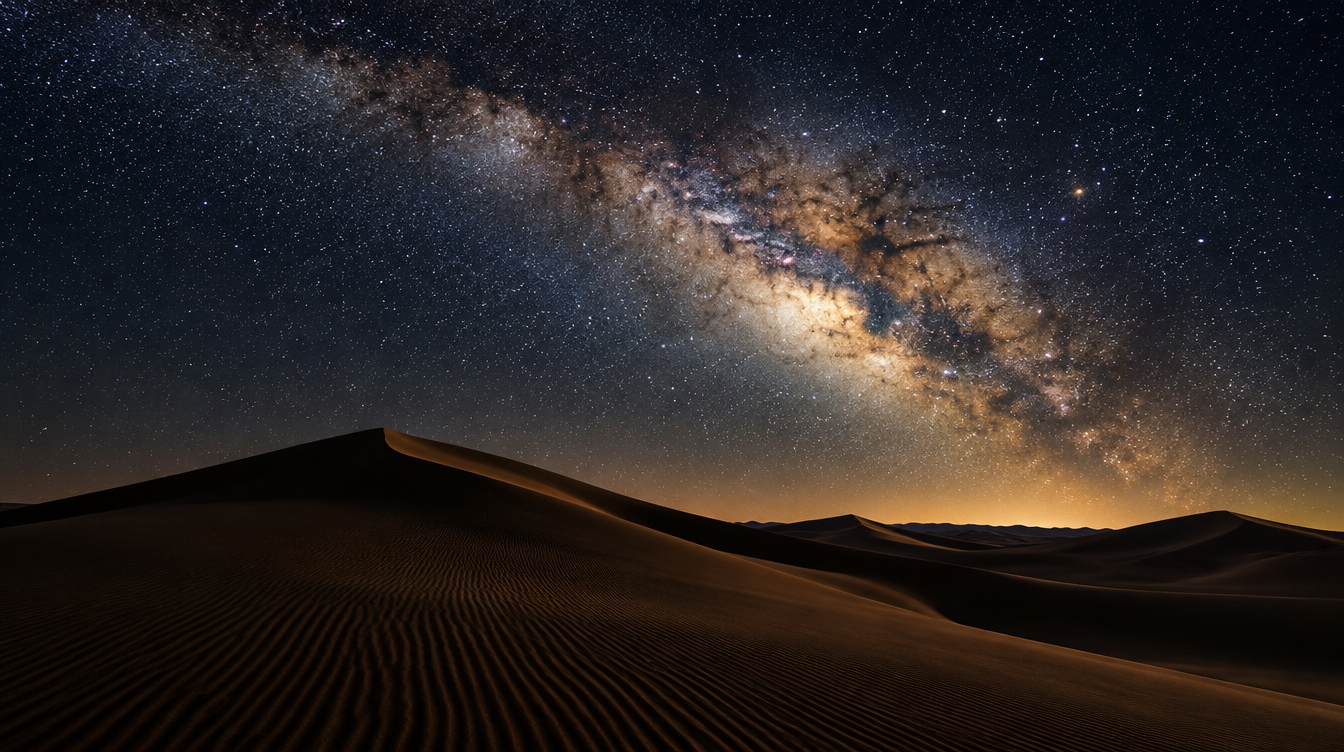
I have sat down to edit Milky Way files the morning after a shoot more times than I can count, and the first frame out of the card always looks like a disappointment. Flat, grayish, a little too much green or magenta in the sky, stars buried in noise, the galactic core barely visible as a smudge instead of the structured band you remember standing under. That is normal. A Milky Way RAW file is one of the least finished-looking files your camera will produce, and one of the most rewarding to bring to life, because almost everything that makes the final image work happens after the shutter closes, not in the field.
This is the editing workflow I actually use and teach on our night-sky trips, built around Lightroom for the global work and Photoshop for anything that needs layers: stacking multiple frames to kill noise, or blending a separately exposed foreground with a sky exposure. It assumes you already have a reasonably well-shot RAW file. For the shooting-side fundamentals, settings, focus, timing around a new moon, our complete field guide to photographing the Milky Way covers that half of the job. This piece picks up where that one leaves off: the files are on your drive, and it is time to turn a flat, noisy RAW into something that looks like the night you remember.
Key Takeaways
There is no single slider that fixes a Milky Way photo. There is a sequence: correct the color, build the tone, deal with noise honestly, blend if you shot multiple frames, then stop before you overdo the core.
| Point | Details |
|---|---|
| Edit order that works | White balance, then global tone, then noise reduction, then stacking (if applicable), then sky/foreground blend, then local adjustments |
| Biggest noise fix for most photographers | Lightroom's AI Denoise, used at moderate strength and checked at 100 percent zoom before committing |
| When stacking actually helps | When you shot several frames of the same sky, since averaging multiple exposures reduces the random noise that a single denoise pass cannot fully remove |
| Why color noise reduction can hurt a Milky Way photo | Most noise reduction tools treat color and brightness noise separately, and pushing color noise reduction too far can strip the faint color out of the core itself |
| The over-processing red flag | A galactic core that looks painted on, or any compositing of a core from a different frame into the scene, rather than brought out from the frame you actually shot |
| Where this workflow is built to be taught | On the ground, during the post-processing sessions built into WeShoot's Tunisia Milky Way phototour |
Table of Contents
- Before you open Lightroom
- Step 1: White balance for a sky with no daylight to anchor it
- Step 2: Global tonal edits without crushing the core
- Step 3: Noise reduction, manual, AI, or both
- Step 4: Stacking for noise, when you shot multiple frames
- Step 5: Blending sky and foreground in Photoshop
- Step 6: Local adjustments and color grading the core
- Avoiding the over-processed core
- Frequently asked questions about editing Milky Way photos
- Edit the way you shoot it
Before you open Lightroom
Set your expectations before you touch a single slider. A Milky Way RAW file looks flat, slightly green or magenta, and noisier than almost anything else you shoot, and that is by design, not a mistake you made in the field. You are recording an extremely faint light source at high ISO over a short exposure, which is exactly the recipe for noise, and your camera's RAW profile makes zero assumptions about what a reasonable night sky should look like. What you are photographing, when you point a wide lens at the galactic core, is our own galaxy edge-on, with the brightest, densest part of the band sitting toward the constellation Sagittarius, which is why that region of sky is the one everyone chases for the strongest core shots (Wikipedia's entry on the Milky Way lays out why).
Work from the RAW file, never the camera's embedded JPEG preview, and turn off any default sharpening or noise reduction your converter applies on import, so every noise decision happens on purpose later in this workflow. Also do a gut check: if you shot anywhere with real ambient light nearby, a parking lot, a town glow, a farmhouse porch light, no edit fully recovers the core detail you would get from a genuinely dark site. Light pollution is cumulative, showing up as both a color cast and noise in the dark areas you most want clean, which is why roughly 80 percent of North Americans cannot see the Milky Way at all from where they live (Wikipedia's entry on light pollution has the figure). If you want to check how dark your own location is before a future shoot, lightpollutionmap.info overlays measured sky brightness on a map rather than making you guess.
Pro Tip: Before you start editing a whole night's shoot, pick your single best frame first, the one with the sharpest stars and the most interesting foreground, and finish that one completely from start to finish. It becomes your reference for white balance and noise settings on the rest of the set, and it keeps you from burning an hour second-guessing sliders on a frame that was never going to be your keeper.
Step 1: White balance for a sky with no daylight to anchor it
Auto white balance has nothing reliable to measure in a night sky, so it guesses wrong in one of two directions: too warm, burying the sky in an orange cast from whatever ambient light the lens picked up, or too cool, leaving the frame a flat, lifeless blue-gray. The fix I use on nearly every Milky Way file is a temporary trick: push the Vibrance and Saturation sliders in Lightroom far beyond anything you would actually publish, which exaggerates whatever color cast is hiding in the file and makes it obvious whether you are fighting green, magenta, orange, or blue. Once you can see the cast clearly, correct it with Temp and Tint until the sky reads as a neutral, slightly cool blue-black rather than any obvious color, then bring Vibrance and Saturation back down to a sensible starting point, usually around 10 to 20 for Vibrance.
There is no single correct Kelvin value, since it depends on your lens, sensor, and how much ambient light was in the scene, but most Milky Way frames land somewhere in the 3400 to 4200 Kelvin range once corrected, noticeably cooler than a daylight white balance. Trust your eyes and the exaggerated-saturation check over any fixed number. The galactic core itself should read as a warm cream to slightly yellow band once white balance is right, surrounded by sky that reads neutral rather than tinted.
Step 2: Global tonal edits without crushing the core
With color sorted, move to the global tone curve. Lift Shadows and Blacks more than you would on a daylight landscape, since a Milky Way file hides most of its usable detail in the lower third of the histogram, and that detail needs room to breathe before local adjustments can use it. Raise Exposure only modestly if the frame is genuinely underexposed, since pushing it too far on a noisy file amplifies the noise right along with the signal.
Contrast and the tone curve are where the core starts to separate from the surrounding sky. A gentle S curve, lifting shadows slightly and pulling the deep blacks down just a touch, gives the galactic band visual weight without making the whole sky look artificially bright. Resist the urge to crank Clarity and Texture here, even though both sliders make stars look more "defined" in the preview. They also exaggerate noise grain across the whole frame, and what looks like crisp detail at 100 percent zoom often reads as gritty, over-sharpened noise once you back away from the screen. Save both sliders for a light touch later, applied locally to the core.
Step 3: Noise reduction, manual, AI, or both
Noise reduction is the step most Milky Way edits live or die on, and the honest answer to "manual or AI" is that it depends on what is actually in your frame. Most practical noise reduction, manual slider or AI tool alike, works by splitting an image into chroma noise, random color speckling, and luminance noise, random brightness speckling, and treating them differently. A real photograph's fine detail lives mostly in brightness variation rather than color variation, so reducing chroma noise harder than luminance, the normal approach, can end up stripping out exactly the faint color that gives the galactic core its warm, structured look (Wikipedia's entry on noise reduction covers that chroma-versus-luminance split in more depth).
Lightroom's AI-powered Denoise, run from the Detail panel, is genuinely good for astro work on a single frame and should usually be your first move over the older manual Luminance and Color sliders. Run it at a moderate strength rather than the maximum. Push it too hard on a Milky Way file and you can see a subtle swirling in the low-detail dark patches between stars, and in the worst cases it can soften or erase the very faintest stars, mistaking them for noise. My rule is to apply Denoise, zoom to 100 percent on the core and an empty patch of sky, and dial the strength back a notch the moment either area starts to look waxy. On especially star-dense frames I still sometimes reach for the gentler manual Luminance slider instead, since it tends to leave pinpoint stars sharper than a heavier AI pass.
| Situation | What I reach for first |
|---|---|
| Single frame, decent dark-sky conditions | Lightroom AI Denoise, moderate strength, checked at 100 percent zoom |
| Single frame, very star-dense core | Manual Luminance slider at a gentle setting, to protect pinpoint stars |
| Several frames of the same composition | Stacking first in Photoshop or dedicated stacking software, then a lighter denoise pass on the stacked result |
| Frame shot with a star tracker | Minimal noise reduction needed on the sky at all, since the tracker already gave you a longer, cleaner exposure |
Pro Tip: Always run noise reduction, AI or manual, as a non-destructive step and compare before and after at 100 percent zoom with the Lightroom "Y" split-screen view rather than trusting the small preview thumbnail. Noise damage and over-smoothing are both easy to miss at a glance and obvious once you are actually looking at pixels.
Step 4: Stacking for noise, when you shot multiple frames
If you shot several frames of the same composition back to back, easy to do on a tripod over a few minutes of a still night, stacking is the biggest noise-reduction lever available, bigger than any single-frame denoise pass. The stars and galactic structure stay in the same place frame to frame, while the noise is random and different in every exposure. Average enough frames together and the real signal reinforces itself while the noise cancels out, leaving a cleaner result than any one frame alone.
In practice this means aligning and averaging a stack of frames in Photoshop, using the Stack Mode feature on a set of layers, or in dedicated stacking software built for the job. The frames need to be shot back to back on a stable tripod with the same composition and settings. If part of your set was shot with a star tracker, which follows the sky's rotation and lets you use a longer single exposure at a lower ISO, you may not need to stack at all, since the tracker already did that noise-reduction work by letting more real light hit the sensor per frame instead of relying on brute-force ISO.
One thing to watch for as you combine more frames: the benefit is not unlimited, and past a certain total exposure time you can introduce ghosting right at the border between sky and foreground, since the two are not moving the same way relative to your frame once the earth's rotation is factored in over longer stretches. The fix is to mask the foreground back in from a single, separately handled frame rather than including it in the stack, which brings us to the next step.
Step 5: Blending sky and foreground in Photoshop
A Milky Way photograph with real foreground interest, a rock formation, a Berber tent, a dune ridge, almost always needs a separate exposure for that foreground, because the settings that make the sky work rarely make the ground work too. This is just exposure bracketing applied at night: shoot the sky at your wide-open aperture, high ISO, 20-to-30-second settings, then shoot the foreground at a cleaner, often longer and lower-ISO exposure, sometimes with a headlamp or a brief light-painting pass.
Bring both frames into Photoshop as layers, align them if the camera moved between exposures, and mask the horizon by hand with a soft brush, working at a high zoom right along the join so the transition reads as natural rather than cut out. The two things that give a bad blend away fastest are a mismatch in color temperature between the layers, which is why getting white balance right independently on both frames matters, and a mismatch in apparent sharpness. A touch of matching grain across the whole composite helps the two pieces read as one photograph rather than two stacked on top of each other.
Step 6: Local adjustments and color grading the core
With global tone, noise, and any blending settled, the last stage is local work, concentrated almost entirely on the galactic core. A radial or linear gradient mask over the core, or a dedicated sky-selection mask if your software offers one, lets you lift its exposure and contrast slightly without touching the rest of the sky, which is where the Clarity and Texture you held back in Step 2 can finally earn its place, applied locally and in moderation. A small warmth boost within that masked area reinforces the core's natural cream and gold tones without shifting the color of the surrounding sky, which should stay a cooler, neutral dark blue.
Color grading at this stage is about restraint more than creativity. The core has a real, physical color, driven by the starlight, dust, and gas you are recording, and the goal is to reveal that color rather than invent a more dramatic one. If a color grade pushes the core toward a hue that was not in your Step 1 white-balance check, you have drifted from editing into stylizing, a valid choice for some photographers, but one to make deliberately rather than by accident.
Avoiding the over-processed core
Every one of the steps above has a failure mode, and they all show up in the same place: a galactic core that looks painted on rather than photographed. Here is the checklist I actually run through on my own files before I call an edit finished.
- Zoom to 100 percent on the core and an empty patch of sky. If either looks waxy, smeared, or has lost small stars compared to the raw file, your noise reduction was too aggressive.
- Check saturation on the core against your Step 1 white-balance reference. If it has drifted toward a color that was not in that test, dial back Vibrance or the local color grade.
- Look for a hard edge around the core from an overused radial mask. A real galactic core fades gradually into the star field; a visible ring means the mask needs more feathering.
- Never composite a sharper or more colorful core from a different frame, a stock image, or someone else's photograph. Blending your own foreground exposure with your own sky exposure is standard technique. Splicing in a core you did not capture that night is not, and it has cost real photographers their credibility, including in one widely discussed case involving a misplaced, duplicated core in a high-profile published Milky Way image.
- Step away from the screen and look at the image at normal viewing size before publishing. Noise damage and halo edges are often invisible in a tight crop and obvious once you zoom back out.
That instinct toward restraint is part of why so much of our own night-sky work happens in genuinely dark places, rather than relying on heavy editing to manufacture a dark sky that was never there. Night skies free of artificial light are becoming scarcer, not more common, which is why agencies like the U.S. National Park Service actively work to protect natural night skies within national parks, treating dark, unlit conditions as something ecosystems rely on rather than a convenience for photographers (the National Park Service's Night Skies program covers that work in more detail). The less your edit has to compensate for light pollution baked into the file, the more this workflow is about enhancement rather than rescue.
Frequently asked questions about editing Milky Way photos
Do I need Photoshop to edit Milky Way photos, or is Lightroom enough? Lightroom alone can handle white balance, global tone, and AI Denoise on a single frame, and for many shots that is a complete edit. You need Photoshop when stacking multiple frames or blending a separate foreground exposure with the sky, since Lightroom cannot work with layers.
Why does my Milky Way photo look washed out or gray instead of colorful? Almost always a white balance problem, a lingering cast muting the core's natural warm tone, or over-applied color noise reduction stripping the faint color out along with the noise. Revisit Step 1 and Step 3 before reaching for more saturation.
Should I use AI Denoise or manual noise reduction? Start with AI Denoise at a moderate strength for most single frames, then check the core and an empty patch of sky at 100 percent zoom. If you see smearing or lost faint stars, back off the strength or switch to the gentler manual Luminance slider.
Is star stacking necessary, or can I edit a single frame? A single well-exposed frame with good denoise can be a finished photograph. Stacking earns its extra Photoshop work when you have multiple frames of the same composition, or when you shot without a star tracker and want to claw back some of the noise advantage a tracker would otherwise have given you.
How do I blend the sky and foreground without a visible seam? Match white balance and apparent sharpness between the two source frames first, then mask by hand with a soft brush at high zoom right along the horizon, rather than trusting an automatic selection to get the transition right on its own.
Can I fix a Milky Way photo shot in a light-polluted area? You can improve it, but you cannot fully recover detail light pollution erased at capture. A core shot from a genuinely dark site will always have more real detail to work with than the cleanest possible edit of a light-polluted one.
Do I need a star tracker to get clean Milky Way photos? No. A tripod, a fast wide lens, and a careful edit using the steps above can produce a strong single-frame result. A tracker mainly buys a longer, cleaner exposure up front, reducing how much noise-reduction work the edit needs later.
Edit the way you shoot it
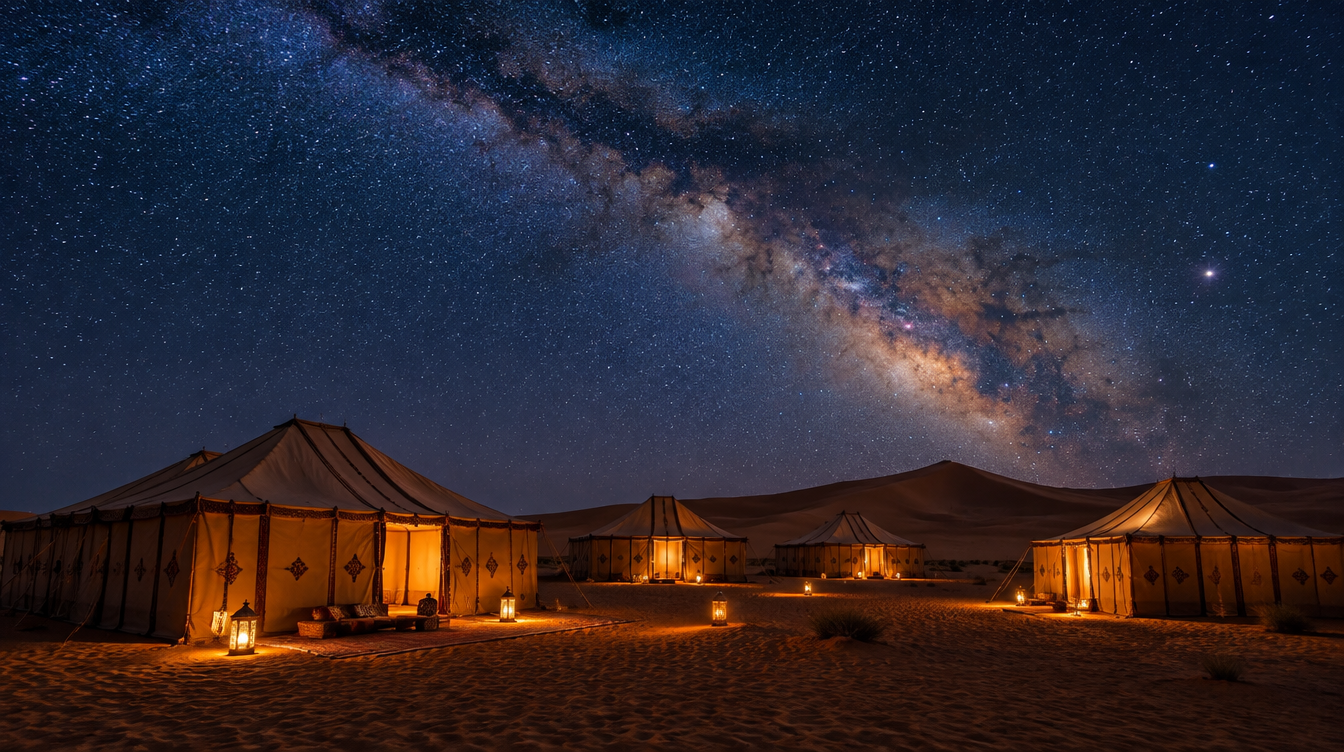
This workflow was built around the files our guests bring home from the desert, not a generic tutorial scene. On our Tunisia Milky Way phototour, a seven-day trip at an easy difficulty rating, the night shooting culminates at Camp Mars, a Berber tent camp reached after an eighty kilometer drive into the dunes, where the itinerary is blunt about the conditions: no camp lights, just stars, silence, and your camera under a genuinely dark sky. Earlier in the trip there is a poolside astro-tracker introduction, so by the time you reach Camp Mars you already know whether you are shooting tracked, stacked frames or working tripod-only. With two to three photo sessions most days, you come home with a lot of raw frames to work through, which is exactly why a Photoshop course with post-production tutorials is built into the itinerary. The departure calendar is in flux at the time of writing, so check the Tunisia Milky Way phototour page directly for the next open date.
If you already have a card full of Milky Way files and just needed the workflow, that is what the six steps above are for. If you are still planning the trip that will produce those files, our complete landscape photography guide is the wider map this editing workflow fits into, with links out to the shooting-side technique and destination guides, including our full field guide to the Milky Way itself.
Sources
- Wikipedia: Milky Way, galactic core location and brightness
- Wikipedia: Light pollution, Bortle scale and visibility statistics
- Wikipedia: Noise reduction, chroma versus luminance noise and AI denoising
- U.S. National Park Service: Night Skies program
- lightpollutionmap.info: measured sky brightness and dark-site finder